Editing Diagrams
Learn how to edit diagrams in Diagramly with both manual controls and AI prompts. Refine structure, labels, and layout without starting over.
Introduction
Creating a diagram is only the first step. In real projects, diagrams evolve as requirements change, systems grow, and feedback comes in from teammates.
Diagramly makes this iterative workflow simple: you can edit diagrams visually, adjust diagram code directly, and ask AI to apply structured updates from natural language.
Open the Diagram Editor
Start from your dashboard and open any existing diagram, or generate one from text/image first.
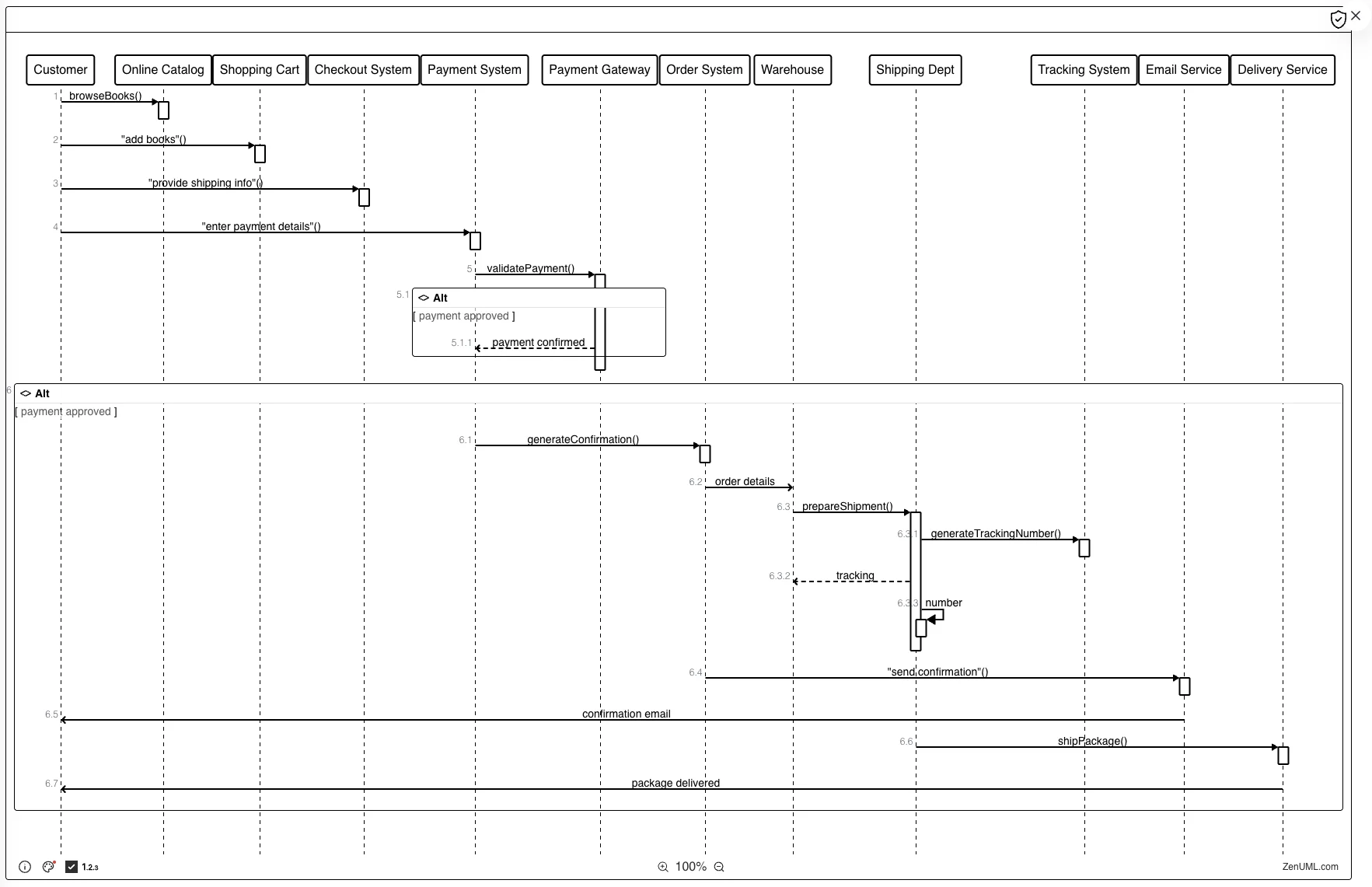
Click to enlarge: Open a generated diagram and continue editing
Edit Manually
Use the editor to refine details with full control:
- Update labels, node names, and descriptions.
- Reorganize structure to improve readability.
- Adjust connections, ordering, and grouping.
- Keep formatting clean and consistent across the whole diagram.
This is the best option when you need precise control over small details.
Edit with AI Prompts
When bigger changes are needed, use natural language to speed up iteration.
Example prompts:
Add a validation step before payment processing.
Group all notification services into one subsystem.
Rename "Order Service" to "Checkout Service" across the diagram.
Simplify the diagram for a non-technical audience.
AI edits help you quickly reshape structure while keeping your original intent.
Iterate and Finalize
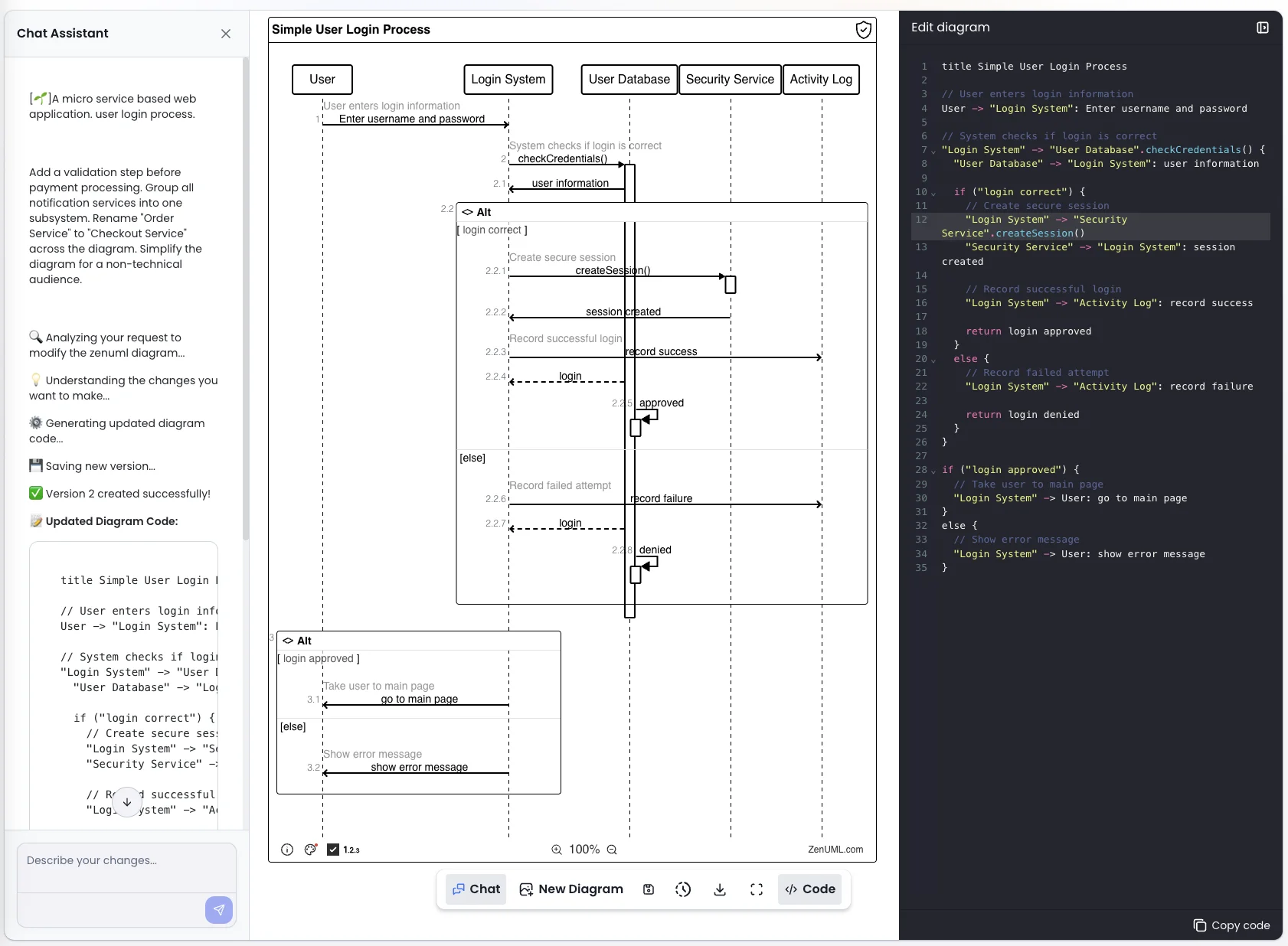
Click to enlarge: Iterate between manual edits and AI-assisted refinement
You can also edit the source code on the right panel to refine the diagram.
Combine manual editing and AI prompts in short cycles until the diagram is clear and presentation-ready.
Tip: For best results, apply one major change at a time, then quickly review layout and labels before the next prompt.